

You get the statement as a file in your bank's online banking or app, usually with the transactions of an account, through a button like "Export" or "Download". Pick CSV or camt.053 there. Below are the steps of eleven banks in Switzerland, Germany, France and Portugal, as the banks describe them on their own help pages, and what to do when there is only a PDF.
01Where is the export?
Start at the account itself, where the transactions are listed, ideally in online banking on a computer. Depending on the bank the button is called "Export", "Download", "Herunterladen" or "Umsätze exportieren", and sometimes it hides behind three dots "…".
If you find nothing there, look under Payments or Documents. At Raiffeisen the export is under "Zahlungen" > "Datentransfer", at Yuh in the app under "Documents".
On your bank's website, try the search words export, CSV, camt.053 or MT940. If that gets you nowhere, ask the bank directly: "Can I download my transactions as camt.053 or CSV?"
- 1Open the accountIn online banking, ideally on a computer, where the transactions are listed.
- 2Find the exportA button like Export or Download, sometimes behind three dots. If not, look under Payments or Documents.
- 3Pick the formatcamt.053 or CSV. If there is only Excel, save the file as CSV.
- 4Choose the periodFrom the day after your last import, so nothing comes in twice.
- 5Import and checkInto the account it belongs to. Check the dates, money in and out, and transfers between your own accounts.
The first three steps happen at your bank; the sections below give each bank's own menu names.
02Which format do I pick?
A PDF is made for reading and printing. For a household book, a spreadsheet or an app you need a file in which every transaction is its own row with a date, an amount and a text. There are four common formats for that.
CSV is a text file that every spreadsheet program opens, one row per transaction. Each bank arranges the columns a little differently, so a program often asks the first time which column is the date and which is the amount.
camt.053 is the bank statement in the international standard ISO 20022, an XML file. Date, amount, direction and counterparty sit in fixed places, so there are no columns to match up. The Swiss Payment Standards describe it as the message banks use to send account information to their customers. Its siblings are camt.052 (the transactions during the day) and camt.054 (credit and debit notifications).
MT940 is the older statement format from the banks' SWIFT traffic. The same standards name it as an alternative to camt.053.
OFX is a format for finance programs. BoursoBank, for example, offers it together with QIF.
If your bank offers several, take camt.053 or CSV. If there is only Excel, open the file in your spreadsheet program and save it as CSV. If you get a .zip file, unpack it first.
If the file has two date columns, booking date and value date, take the booking date. It is the day the bank wrote the payment into your account, and the same day you see on the statement.
03How does it work at banks in Switzerland?
All the steps in this section and the next three come from the banks' own help pages, read on 2 November 2026. Menus change, so the links under each section lead to the banks' pages. The bank's page names the menus of Raiffeisen, Migros Bank and the Aargauische Kantonalbank in German, so they are quoted in German here.
Raiffeisen: In online banking, "Zahlungen" > "Datentransfer" > "Download Kontodaten". In the window you choose the account, the format, the account data and the booking details, then "Herunterladen". The choices are XML (ISO) and Excel CSV. For private customers Raiffeisen recommends Excel CSV.
Yuh: In the app, "Account" > "Documents", then "Request" (iOS, top left) or "REQUEST DOCUMENT" (Android, bottom right) > "Account activities export" > "Next". You choose the filters, and the CSV file then appears under "Documents". One file covers 18 months at most. For a longer period you create several.
Migros Bank: In online banking, click the account's row, then "…" > "Kontoauszug exportieren". Under "Format" choose CSV. The same function also delivers CAMT.053, CAMT.054 and MT940. According to the bank's instructions you need a second activated device for that, and you start in the area "Vermögen". The period is first set to the current month, so widen it. Then "Exportieren".
Aargauische Kantonalbank: In online banking, "Finanzen" > "Kontoauszug". According to the bank's questions and answers, the data can be exported in CSV format. The page does not say what the button is called.
BCGE: In Netbanking, open the account and click "Download". Choose the file format, the content and the period, then "Download now". The page does not say which formats there are. Take CSV or camt.053 if they are there.
04Banks in Germany
The pages of the German banks are in German, so their menus are quoted in German.
Sparkasse: Each Sparkasse is its own bank, and all use the same online banking. This is how the Sparkasse Gummersbach describes it: log in, open the "Umsatzabfrage" of the account in the "Finanzstatus", click "Exportieren" at the top right and choose the period and the format. The formats offered are "CSV-CAMT-Format", "CAMT-Format (gebuchte Umsätze)", "CSV-MT940-Format" and "MT940-Format". For a spreadsheet you take "CSV-CAMT-Format".
ING: In online banking, open the account's "Umsatzanzeige", set the period if needed and click "Exportieren" at the bottom of the page. That saves your balance and your transactions as a file. The page does not name a format. The "Umsatzanzeige" reaches back up to 390 days.
Commerzbank: In online banking, choose the account, click "PDF / CSV" at the top right above the transactions and choose "Umsätze exportieren". In the window you choose the transactions, take "CSV" as the format and click "Exportieren". The transactions can be viewed up to 12 months back.
05Banks in France
The menus are in French here, as the banks write them.
BoursoBank: In the Espace Client, click the account, set the period and click "Rechercher". Under the results you find "Exporter en format CSV". For finance programs, the account movements are also available as QIF and OFX.
BNP Paribas: In the Espace Client, choose the account under "Comptes et Contrats", open the details with the arrow on the left, then "Télécharger mes opérations". The page does not name a format.
06Banks in Portugal
The bank's page is in Portuguese, so its menus are quoted in Portuguese.
Millennium bcp: On the website, choose the option "Saldos e movimentos" under "Contas" and click "Download" at the bottom left. The movements come as an Excel or CSV file. The view reaches back up to one year.
07My bank is not here. What now?
For some large banks we found no instructions on their own help pages for exporting the transactions as a file (as of 2 November 2026): UBS, PostFinance and the Zürcher Kantonalbank in Switzerland, and Deutsche Bank. An export can still be in the online banking. Look for it the way described above.
The Zürcher Kantonalbank has a data service, ZKB Dataset, with CSV and XML files. According to its page, it is open only to legal entities, meaning companies and associations.
Revolut describes a statement per currency account in the app: "Accounts", choose the account, "More (...)", "Statement", then the period and PDF or Excel as the document type. Take Excel and save the file as CSV in your spreadsheet program.
For any other bank, the route from the beginning helps: look for "Export" or "Download" at the account, search the bank's website for CSV, camt.053 or MT940, or ask the bank.
08What if there is only a PDF?
Then start from today's balance. You take the balance from your online banking as the starting point and write down what comes in from today. If the bank later offers an export, you import from then on.
You do not need the past months to get started. If you want to see where the money went so far, type in one ordinary month from the PDF. One month already shows a lot.
And ask your bank whether it can deliver the transactions as camt.053 or CSV. Sometimes the export exists even when the help page does not describe it.
09How far back does an export go?
Each bank decides that itself, and few write it down. On the pages above: at Yuh one file covers 18 months at most. ING's "Umsatzanzeige" reaches back up to 390 days, at Commerzbank it is 12 months and at Millennium bcp one year. At Migros Bank the period starts at the current month until you widen it.
If you want a whole year, export it soon. What is still in the list today can be gone from the view in a few months.
10And then? Import the file
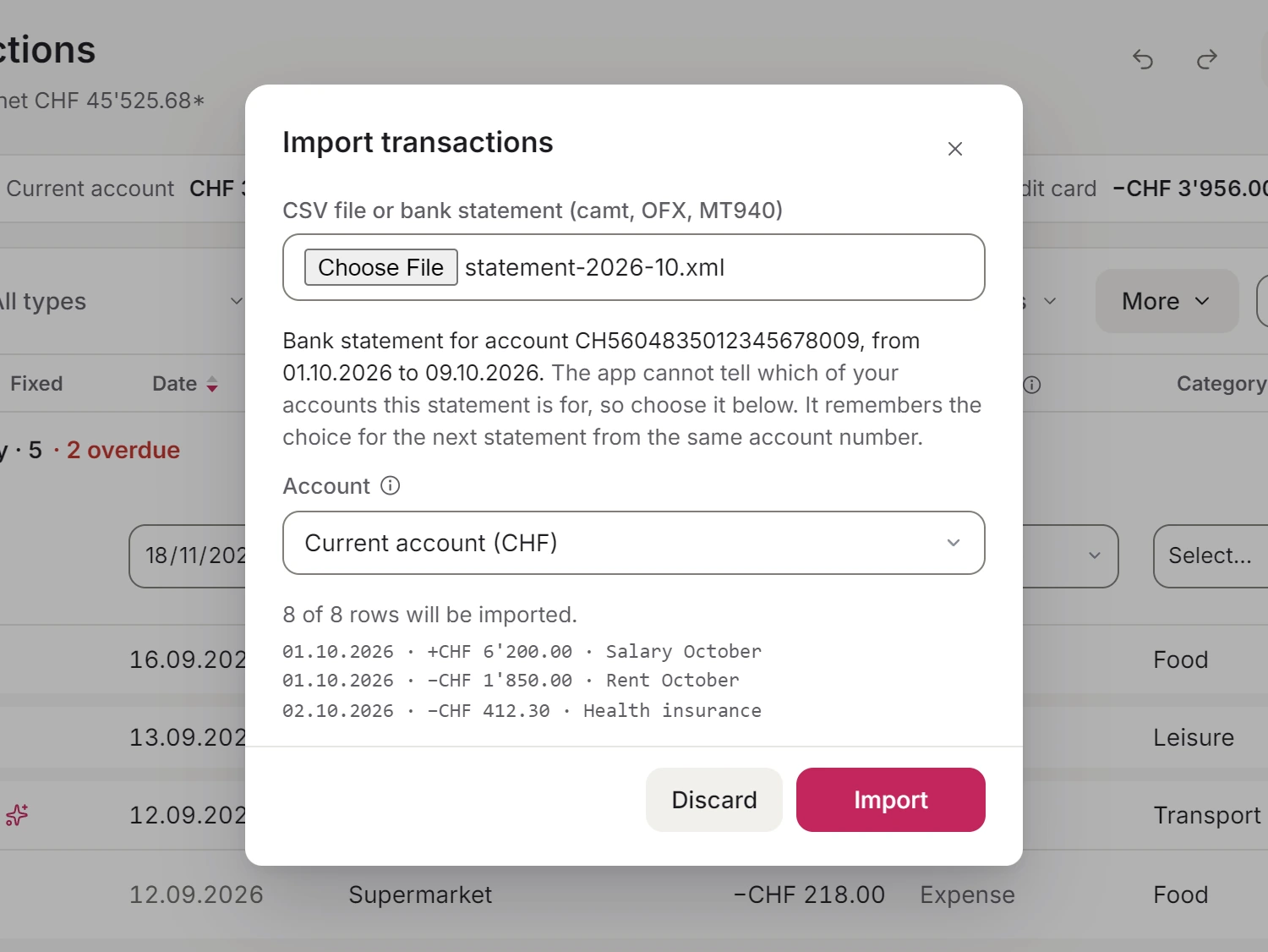
In a budget app or a spreadsheet, you import the file into the account it belongs to. A good import shows you the rows before they come in, so you can check the account, the dates and the amounts first. Five things go wrong most often, in any app.
The date. If the file has a booking date and a value date, use the booking date, and use it every time. Otherwise the same payment can land in two different months.
Money in and money out. Some files have one amount column with a minus for money out, others have two columns, debit and credit. Check on the first rows that spending comes in as spending.
Duplicates. Two exports that overlap, say January to March and then March to May, bring March in twice. Some apps recognise rows that are already there; in a spreadsheet you delete them yourself. Exporting from the day after your last import avoids it.
Transfers between your own accounts. Moving 500 from the current account to the savings account shows up in both files, once going out and once coming in. Counted as an expense and as income, it inflates both. Record it as one transfer, which counts as neither.
A PDF. Most budget apps cannot read one. If that is all your bank gives you, start from today's balance and record from there.
11How do I open a camt.053 file?
A camt.053 file is XML, made to be read by software. A text editor or a browser opens it, but you see tags around every amount, not a list. Import it into a budget app or a finance program that reads camt.053.
If you only want to look through the transactions, export the same period as CSV or PDF as well. Those are easier to read.
12How it works in Spendhog
Spendhog reads the file as it comes: CSV, camt.053, OFX or MT940. In the import, the app shows you the steps for the banks above under "Your bank", following their own help pages. You see every row before it comes in, and entries that are already there are recognised so that nothing lands twice.
Money between your own accounts is a transfer and counts as neither income nor expense. If the import finds the other half on one of your other accounts, it offers to join the two rows into one transfer.
The app cannot yet read a PDF statement, an Excel file or QIF. You save Excel as CSV first, and for QIF you take CSV or OFX. If there is only a PDF, you enter today's balance as the account's opening balance and record from there.
In the demo you see the app with an example household, with no account and no email. With "Start empty" you try your own bank file there. What you enter stays in your browser.
Questions about this page? Reach us any time and we'll walk you through it. info@spendhog.com